

Give up Firefox and transfer it from Functions to the Trash to uninstall it out of your Mac. Your Firefox profile is saved individually. Determine whether or not to maintain the bookmarks, saved logins and historical past in that profile earlier than eradicating it.
To take away Firefox from a Mac, give up the browser and transfer Firefox from Functions to the Trash. To clear its native profile, again up any knowledge you wish to preserve and transfer the Firefox folder at ~/Library/Software Help/Firefox to the Trash individually. To clear historical past and cookies whereas conserving Firefox, use Clear Latest Historical past as a substitute.
- In case you already use a macOS uninstaller, evaluate the precise recordsdata it selects earlier than clicking take away.
- For historical past, cookies or non permanent recordsdata, open Historical past → Clear Latest Historical past , choose a time vary and test solely the classes you wish to take away.
- Your bookmarks stay within the Firefox profile till you delete that profile or the bookmarks themselves.
- Test for extra profiles if a couple of particular person has used the identical macOS account.
Uninstall the Firefox app
- In Firefox, select Firefox → Give up Firefox.
- Open Functions in Finder.
- Choose Firefox and select File → Transfer to Trash.
That removes the appliance. Firefox retains its bookmarks, logins, looking historical past and different settings within the separate profile, as Mozilla’s uninstall information explains.
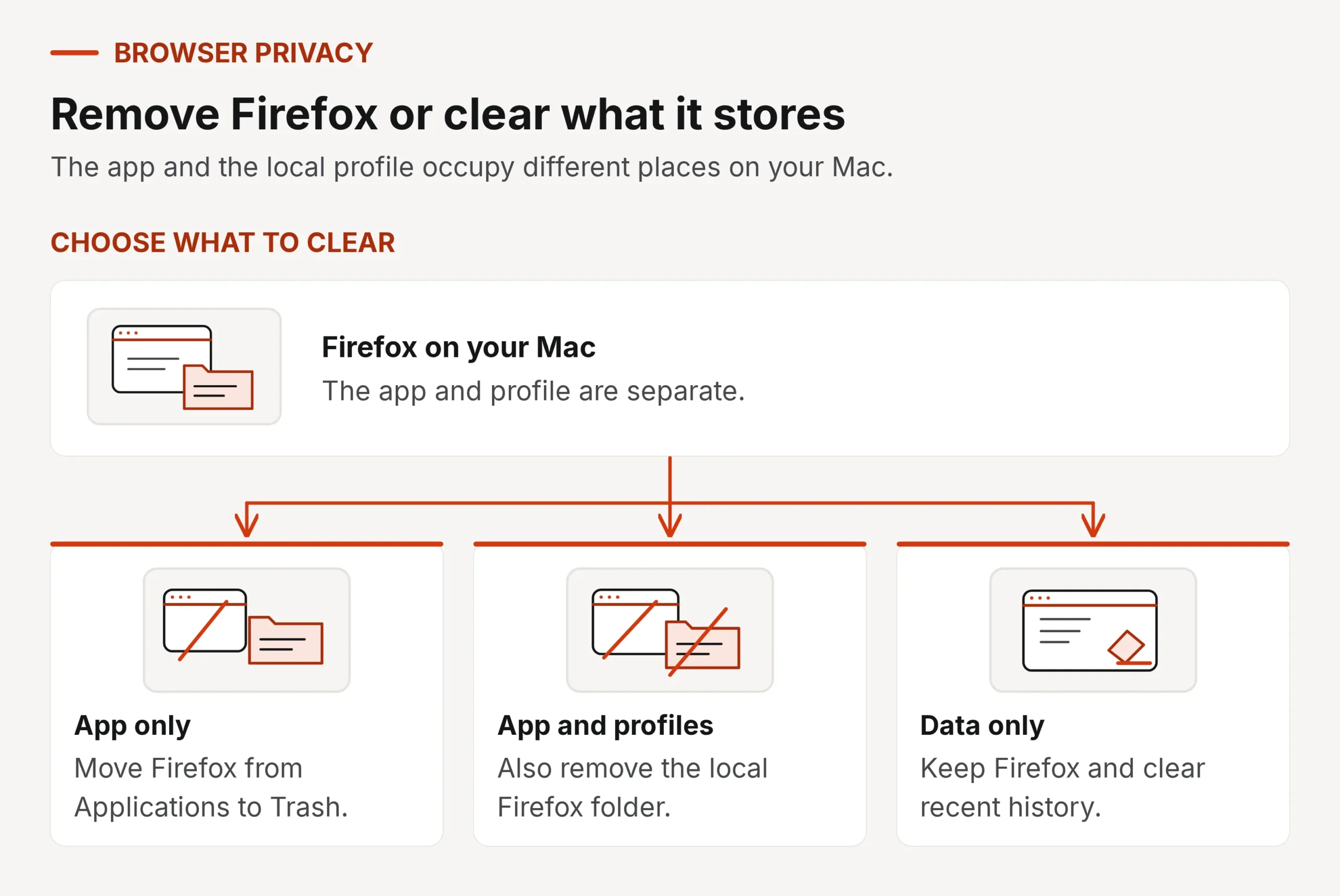
Three cleanup paths distinguish uninstalling Firefox, eradicating its native profile and clearing looking knowledge whereas conserving the browser.
Take away the native Firefox profile
In case you plan to reinstall Firefox or transfer to a different browser, find and again up the profile earlier than eradicating it. Whereas Firefox continues to be out there, you possibly can open about:help within the tackle bar and use the button beside Profile Folder to seek out the lively profile. Test for extra profiles if a couple of particular person has used the identical macOS account.
- With Firefox closed, open Finder → Go → Go to Folder.
- Enter
~/Library/Software Help/Firefox. Mozilla places the profiles inside this folder underneathProfilesby default. - If you wish to take away all Firefox profiles for that Mac person, transfer that Firefox folder to the Trash. Go away different software help folders alone.
- Test that the backup consists of something you continue to want earlier than you empty the Trash.
A Mac with a number of macOS accounts can have separate Firefox profiles for every person. The Library path above refers back to the at present signed-in Mac person.
In case you already use a macOS uninstaller, evaluate the precise recordsdata it selects earlier than clicking take away. MacPaw’s information on methods to uninstall Firefox on Mac describes its cleanup workflow. A file checklist is helpful if you wish to preserve profile knowledge for a later reinstall. Verify that the software chosen Firefox’s recordsdata and that something you wish to preserve is backed up.
| What you need | The place to do it |
|---|---|
| Uninstall Firefox and preserve your profile | Transfer Firefox from Functions to the Trash. |
| Take away Firefox and all its native profiles for this Mac person | Take away the app and the Firefox folder underneath your Library’s Software Help folder. |
| Clear looking historical past or website knowledge whereas conserving Firefox | Select the related classes in Clear Latest Historical past. |
Clear looking knowledge whereas conserving Firefox
For historical past, cookies or non permanent recordsdata, open Historical past → Clear Latest Historical past, choose a time vary and test solely the classes you wish to take away. Clearing website cookies can signal you out of web sites. To take away saved passwords, open Firefox Password Supervisor and delete the saved entries there.
Deal with synced knowledge on the best system
In case you use Firefox Sync and wish to preserve these information in your different gadgets, signal out of your Mozilla account on this Mac earlier than clearing native knowledge. In case you plan to present the Mac to another person, evaluate the native profile individually. Mozilla paperwork how Sync handles native and server copies.
Incessantly requested questions
Does shifting Firefox to the Trash delete my bookmarks?
Your bookmarks stay within the Firefox profile till you delete that profile or the bookmarks themselves. Again up the profile earlier than eradicating it if you wish to preserve your bookmarks or saved logins.
Will uninstalling Firefox delete recordsdata I downloaded?
Recordsdata you already saved in Downloads or one other folder keep there. Clearing the browser’s obtain historical past removes the checklist Firefox shows. Handle the downloaded recordsdata individually in Finder.
Can I reinstall Firefox after eradicating the profile?
You may obtain Firefox once more and begin with a clear profile. If you need your outdated bookmarks or settings again, restore them from the profile backup you made or sign up to Sync if these knowledge sorts have been synced and nonetheless exist.

